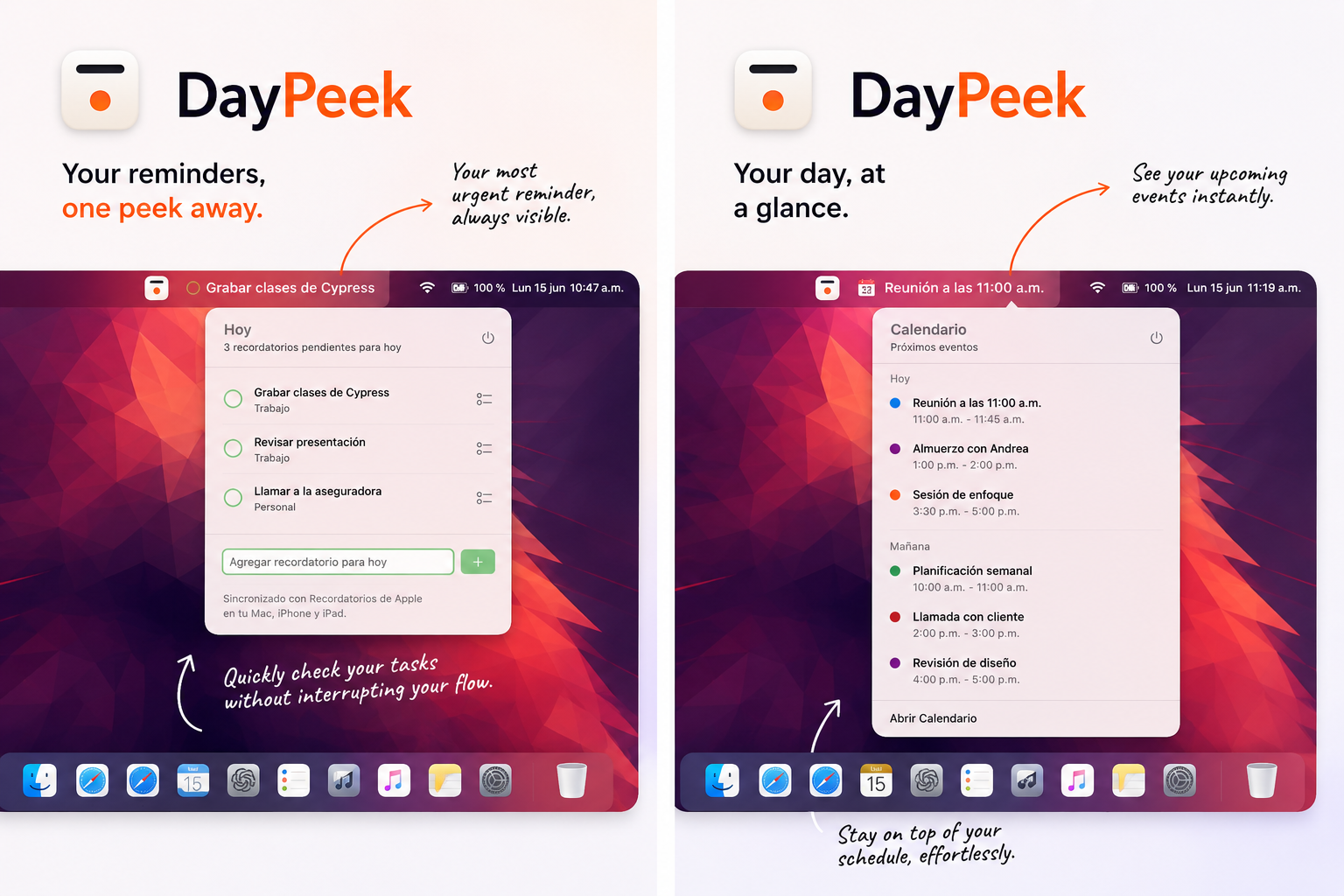
Order reminders the way you plan to do them
The best DayPeek tip is also the simplest one: order your Apple Reminders according to your real plan for the day.
If the first thing you want to do is prepare a presentation, put that reminder at the top. If calling someone or reviewing something comes next, place it after that. DayPeek turns that intention into a visible signal in the menu bar.
Keep each reminder actionable
DayPeek works best when the thing in your menu bar is concrete. Instead of a huge vague list, write reminders you can actually complete.
- Use clear verbs: call, review, send, prepare.
- Split larger tasks into smaller steps when it helps.
- Keep the next step at the top, not necessarily the abstractly most important one.
Separate reminders from events
My practical rule is to use Reminders for things I need to remember and start myself: call someone, send something, review a document, prepare a shopping list.
I reserve Calendar for events that will happen at a specific time even if I do not initiate them: a meeting, a class, a doctor appointment, a deadline with a defined time. That separation helps DayPeek show what you need to do and what is simply coming up.
When today is done
If you complete every reminder for the day, DayPeek does not leave you staring at an empty state or make you keep checking lists.
Instead, it shows what is coming tomorrow. The idea is to close today calmly and keep a light sense of what is next.
Ready to see your day at a glance
DayPeek is available now on the App Store for macOS.