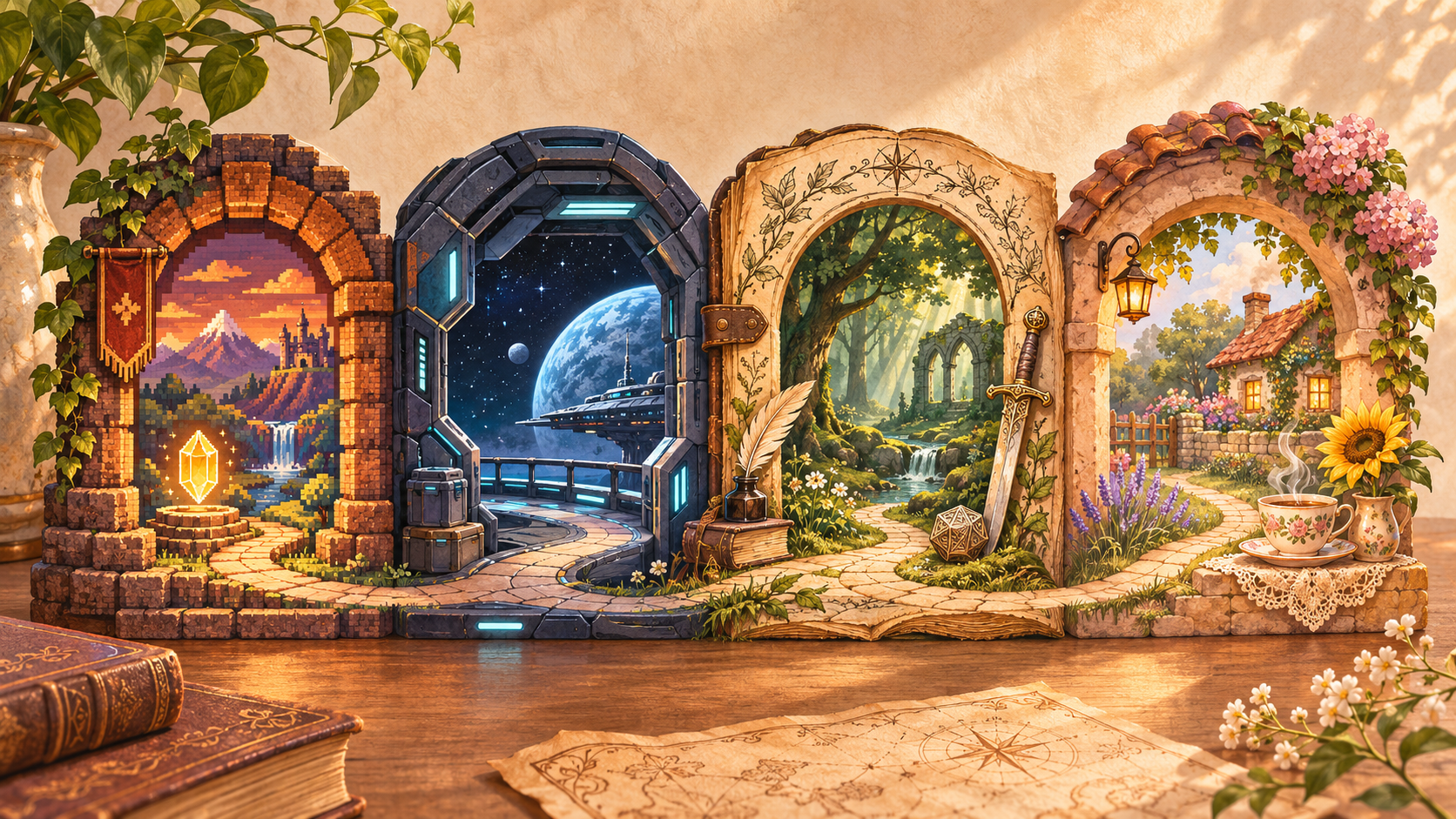
Some days are for exploring an abandoned spaceship. Others are for watering the crops. I wanted Checkpoint to follow a little of that change in mood while keeping what matters easy to read: your last session and what to do next.
The new skins change panels, headings, illustrations and the way your games are presented. Your notes still use text designed for comfortable reading.
Four worlds for your library
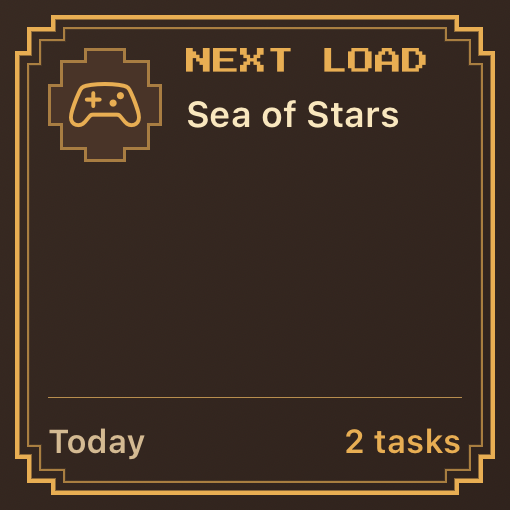
Skins carry through the library, game details, resume view and quick checkpoint composer. They also extend to your Home Screen widgets.
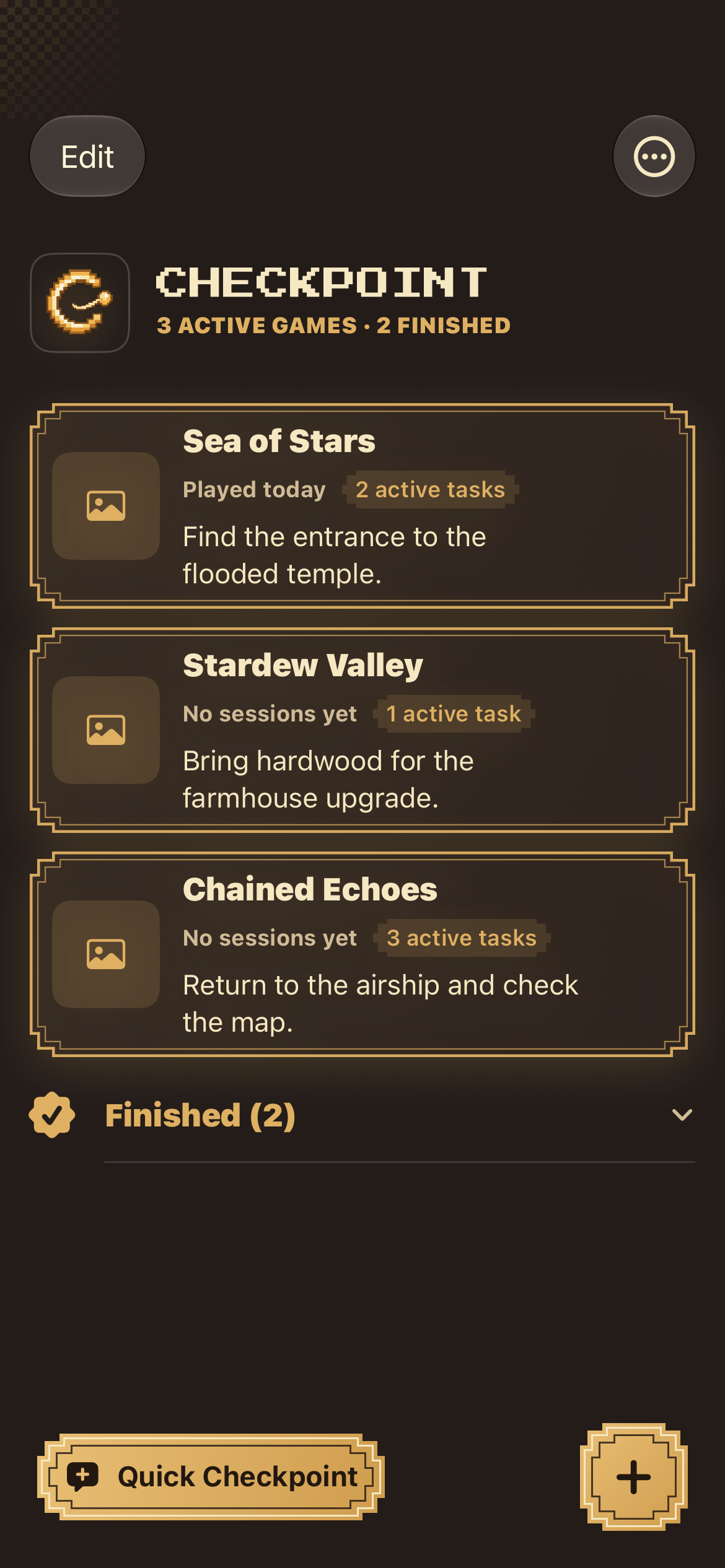
Retro RPG
Pixel frames, warm colours and golden details. Your library feels like the menu of a classic adventure.
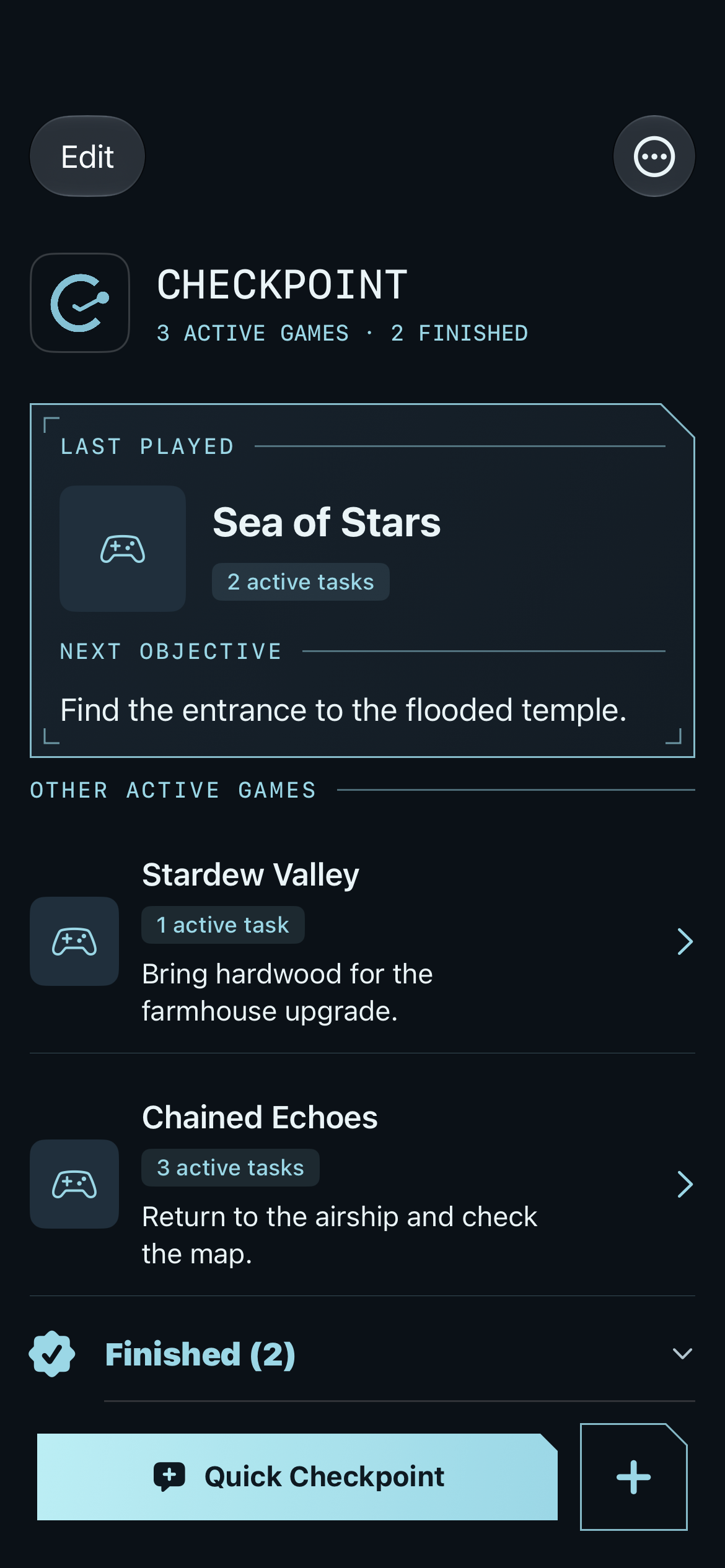
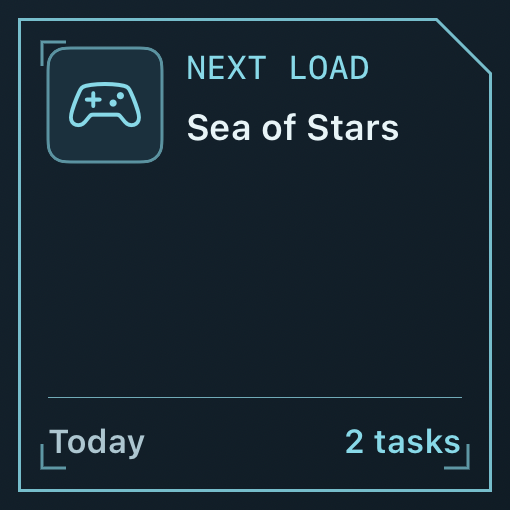
Sci-fi
Dark panels, instrument lines and icy blue accents. Your next objective takes its place as a mission on a spaceship console.
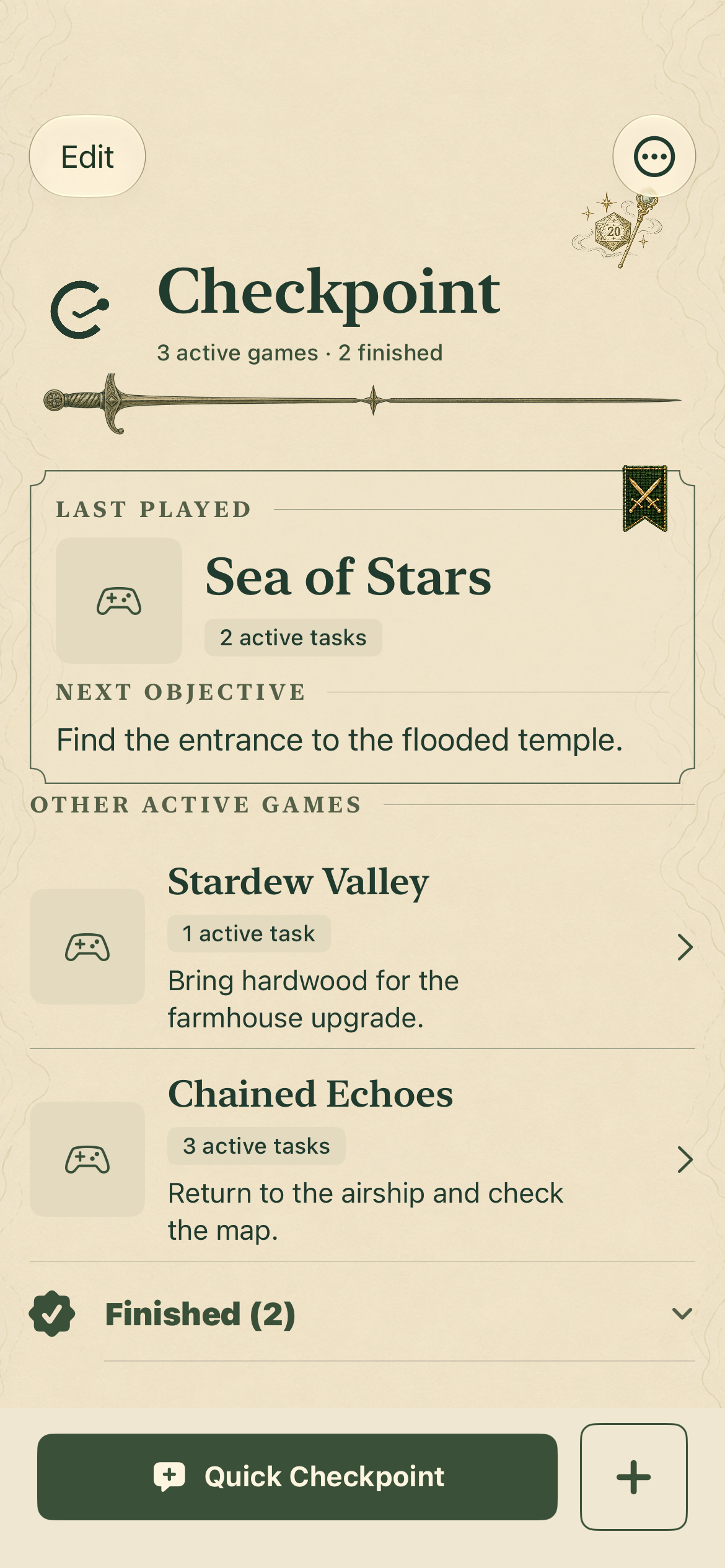
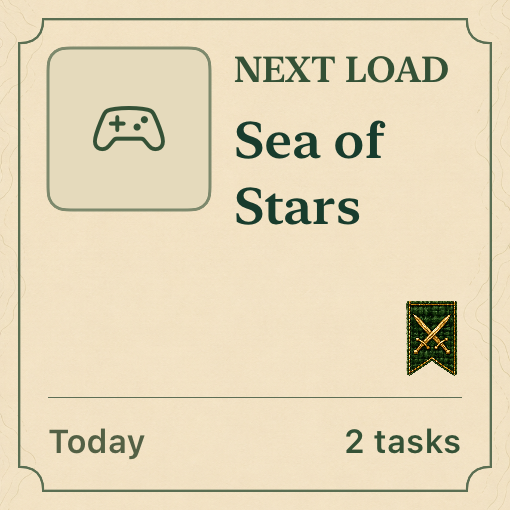
Fantasy Journal
Paper, green ink and bookish headings, with swords, dice and little touches of magic. A travel journal for your games.
Cozy
Cream, peach, soft shapes and a cup of tea. A calmer place to return to your farm, your island or any adventure.
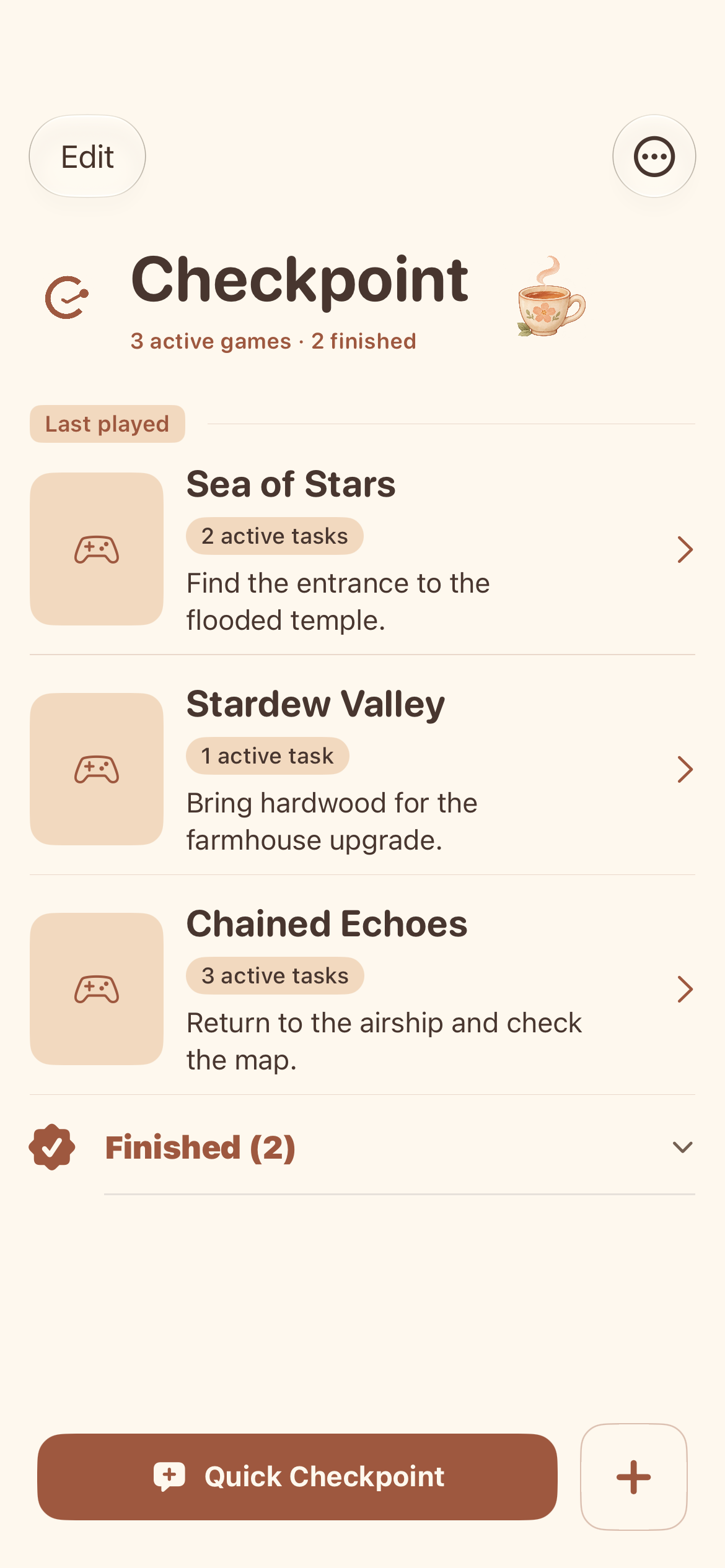
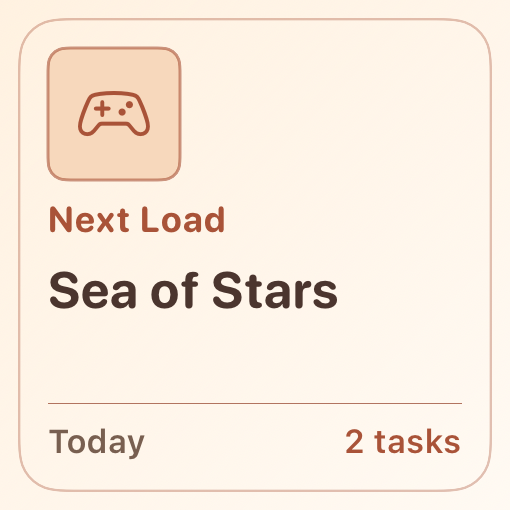
App and widget captures use example data. Widget images show their content; iOS controls the frame and when they refresh on your Home Screen.
An easy way to change the mood
From the library, open App options (•••) → Appearance. Choose Default, Retro RPG, Sci-fi, Fantasy Journal or Cozy. Your choice is saved on the device, and you can change it again whenever you like. Default keeps the original appearance. Your games and notes stay where they were.
Leave a checkpoint before you stop
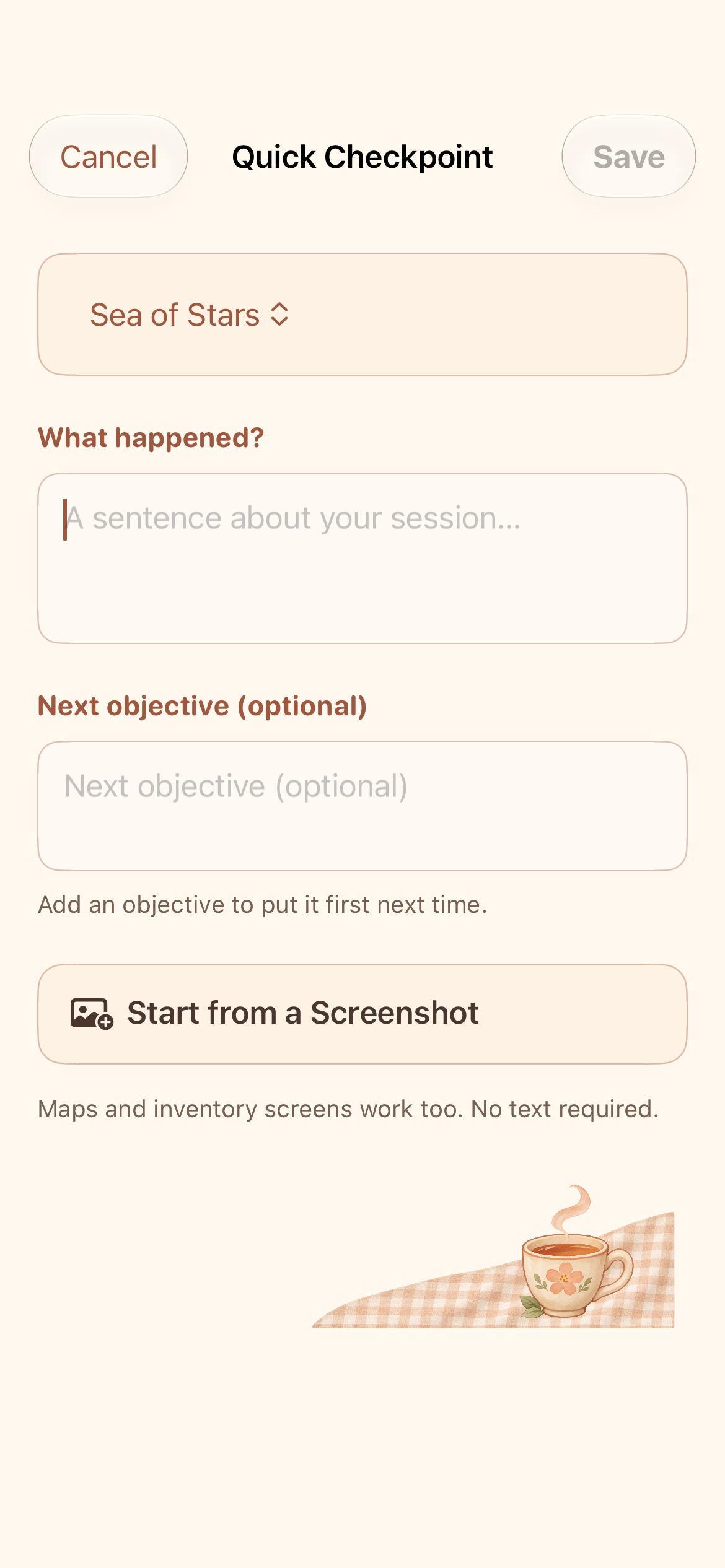
Sometimes “I stopped beside the temple entrance” is enough. Other times, a map screenshot explains your position better. Quick Checkpoint lets you save text, a photo or both, with an optional next objective.
Open it from the library, the game’s recap or the small widget. You do not need to start a playing session to leave a quick note.
Come back with context
The resume summary brings together your latest checkpoint, next objective and a pinned reference. If you saved an image, you can open it at full size. The aim is for that first glance to get you back into the game without rereading every note.
“Next time: find the entrance to the flooded temple.”
The objective you add with a checkpoint becomes the next action shown in the game, library and widget. Once you complete it, the tasks you already had waiting become visible again.
A widget for each game
You can dedicate each Quick Checkpoint widget to a different game. Touch and hold it on your Home Screen, choose Edit Widget → Game and select a game. Tapping the widget opens the composer with that game selected. If you would rather follow the most recent game, keep Last Played Game.
Finding the game matters too
Version 1.9 switches title and cover lookup to IGDB, with the aim of making it easy to build your library again. Manual entry stays available, including while offline, and the catalog change keeps the games you have already saved.
How lookup works and what data is sent
The same idea, with more personality
Checkpoint is still about getting back to playing: leaving a clue for yourself before the next session. These additions bring more personality and make that clue easier to save in the moment.
Meet Checkpoint
Checkpoint 1.9 is available for iPhone. Download or update the app from the App Store to try what’s new.